
टेक्स्ट को सूची में बदलें

Selected Text to List feature आपको किसी भी text block को जल्दी से structured, easy-to-read list में व्यवस्थित करने देता है। Add-on अलग-अलग तरह के input संभालने के लिए पर्याप्त smart है, simple multi-line text से लेकर complex comma-separated sentences तक, और बेहतर result के लिए जरूरत पड़ने पर AI का उपयोग करता है।
टेक्स्ट को सूची में कैसे बदलें
Section titled “टेक्स्ट को सूची में कैसे बदलें”यह process सरल रखने के लिए design की गई है, चाहे आपका text किसी भी format में हो। Add-on conversion के लिए best method अपने-आप तय करता है।
-
अपना टेक्स्ट चुनें जिस text को convert करना है, उसे highlight करें। यह single paragraph, multiple paragraphs, या comma-separated items की single line हो सकती है।
बिखरे हुए paragraph का उदाहरण:
Our quarterly goals are to finalize the marketing budget, we also need to launch the new user dashboard, and another key objective is to hire two senior developers. Don't forget to analyze the Q3 sales data.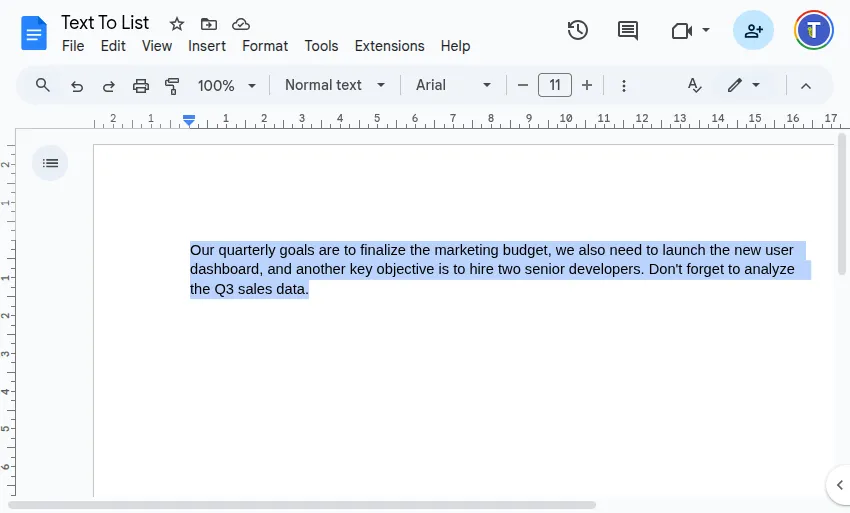
-
कन्वर्टर चलाएँ इनमें से किसी एक का उपयोग करें:
- Sidebar: Convert & Format > Text to List
- Menu:
Extensions>Text To Table Converter>Selected Text to List
-
परिणाम देखें एक नई formatted list सीधे आपकी selection के नीचे insert होगी। AI ने paragraph से हर distinct point को intelligently identify और separate किया है।

Text to List Options (Settings)
Section titled “Text to List Options (Settings)”आप Extensions > Text To Table Converter > ⚙️ Language & Settings पर जाकर customize कर सकते हैं कि lists कैसे बनाई जाएँ।
Settings dialog में, निम्न options configure करने के लिए Text to List Options accordion expand करें:
List Style
Section titled “List Style”यह dropdown आपकी list का visual format तय करता है। उपलब्ध options आपके application के अनुसार अपने-आप बदलते हैं, चाहे आप Google Docs™, Slides™, या Sheets™ में हों, ताकि सबसे relevant styles मिलें।
- Google Docs™ के लिए: अलग-अलग bullet types (•, o, ▪), numbering (1.), lettering (a.), roman numerals (i.), या checkboxes (☐) में से चुनें।
- Google Slides™ के लिए: predefined multi-level list presets में से चुनें।
- Google Sheets™ के लिए: चुनें कि list items plain text के रूप में insert हों, या हर cell में automatically bullets (•), numbers (1.), या checkboxes (☐) के साथ prefix हों।
AI Refinements
Section titled “AI Refinements”यह settings group नियंत्रित करता है कि AI आपकी list content की quality और consistency कैसे बेहतर कर सकता है। ये options केवल तब लागू होते हैं जब add-on conversion के लिए AI का उपयोग करता है।
-
Always use AI: Default रूप से, add-on AI का उपयोग केवल messy, single-paragraph text के लिए करता है। इस box को check करने पर हर text-to-list conversion AI से process होगा, even simple multi-line text भी। यह तब उपयोगी है जब आप बनाए जाने वाली सभी lists पर अन्य AI refinements, जैसे grammar correction, भी लागू करना चाहते हैं।
-
Correct Spelling & Grammar: इसे check करने पर AI list items में मिली typos या grammatical mistakes को automatically ठीक करेगा।
-
Make list items grammatically parallel: यह powerful option AI को आपकी list items को इस तरह rewrite करने का निर्देश देता है कि वे consistent grammatical pattern follow करें। इससे list अधिक professional और polished बनती है।
- उदाहरण: “Reviewing documents, to file tickets, and send the email” बदलकर “Review documents, file tickets, and send the email.” बन जाता है।