
QR Code Generator
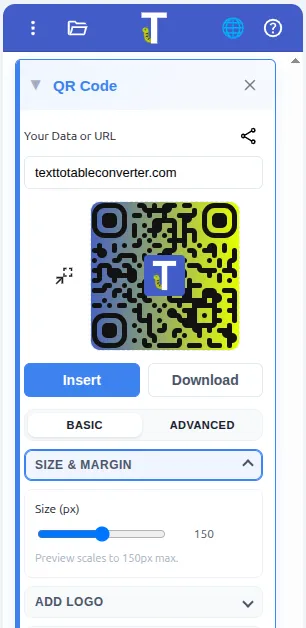
Stop switching tabs to generate QR codes. With this tool, you can create fully customized, branded QR codes directly inside your document. Whether you need a simple link for a handout or a stylized code for a presentation, you can build it with a live preview.
How to Access
Section titled “How to Access”Open the add-on sidebar and click on QR Code.
Step-by-Step Guide
Section titled “Step-by-Step Guide”-
Enter Content Type the text or URL you want to link to.
- Tip: Use the Link Icon button to automatically paste the URL of your current Google document.
-
Customize the Look Adjust the colors, shapes, and logo settings. The Live Preview updates instantly so you can see your changes.
-
Test It Always scan the preview with your phone camera to ensure the code works before finalizing it.
-
Insert or Download
- Insert: Places the image into your file (for example at the cursor in Docs, on the slide/sheet, or as a form image item in Forms).
- Download: Saves a high-quality PNG to your computer.
Smart Shortcuts
Section titled “Smart Shortcuts”Use these features to speed up your workflow:
🔗 Share Current Document
Section titled “🔗 Share Current Document”Instead of manually copying your browser URL:
- Click the Link Icon (🔗) next to the input field.
- The tool automatically grabs the shareable link of your open Doc, Sheet, or Slide.
- A QR code is generated instantly.
↺ Edit Existing QR Codes
Section titled “↺ Edit Existing QR Codes”Did you make a mistake on a QR code you already inserted? You don’t have to start over.
- Select the QR code image inside your document.
- Click the Load Selected button (icon beside the preview).
- The add-on reads the metadata from the image and restores your previous settings (colors, data, logo) so you can make quick edits.
Customization Options
Section titled “Customization Options”Make your QR code stand out or match your company branding.
Basic Settings
Section titled “Basic Settings”- Correction Level: Higher levels allow the code to be scanned even if partly damaged or covered by a logo, but the code will look more complex (denser).
- Size: Controls the resolution of the output image.
Style & Branding
Section titled “Style & Branding”- Dots & Corners: Move away from the standard “blocky” look. Choose rounded dots or specific corner styles to make the code look modern.
- Colors: Change the dots and background color.
- Design Tip: Ensure there is high contrast between the dots (dark) and background (light) for reliable scanning.
- Logo: Upload your company logo or an icon to place in the center of the QR code.
Common Use Cases
Section titled “Common Use Cases”- Classroom Handouts (Docs): Add a QR code to the bottom of a printed worksheet that links to a helper video or the digital version of the assignment.
- Presentation Engagement (Slides): Place a large QR code on a slide to poll the audience, link to sources, or share your contact info.
- Inventory Management (Sheets): Generate codes for product SKUs and insert them next to inventory rows.